
Notes
Background: To improve asset management, standardize how users apply assets and specific styles, and reduce situations such as mixed use of hinged doors, the Style Package feature was developed. It allows enterprises to configure the contents of style packages by themselves, standardize the scope of asset replacement, and improve both design efficiency and review efficiency.
Effective Versions:
- Effective from 20251111
- Door panel restrictions in the Asset Marketplace take effect from 20251229
Scope:
Cabinets, wardrobes, system cabinets, bathroom cabinets, and under these four major modules: door panels, functional components, and cabinet panels. More modules and asset attributes will be added in future updates.
Additional Note:
It is not recommended to associate universal assets with style packages. If a universal asset does need to be associated with a style package, the backend can display style packages from multiple modules, but the frontend only uses the style package of the current module.
Important:
Directory management for assets should be planned carefully. As much as possible, keep assets under a single subfolder.
About Initialization:
See Section III below. Users must configure it in the Workbench before it can be used. Users may configure it by module according to actual usage; it is not necessary to configure all modules.
I. Basic Switches (Workbench)
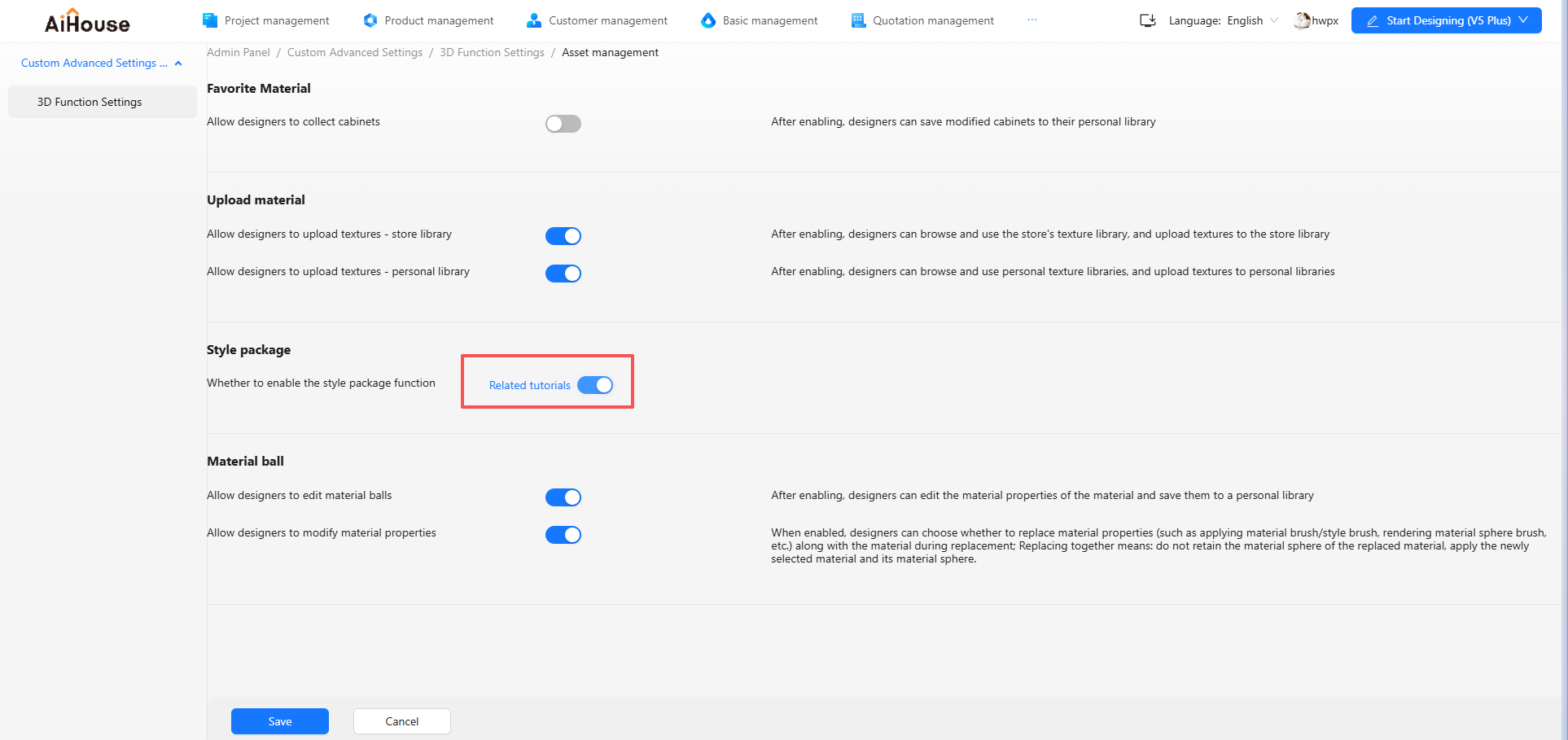
1. A New Switch in 3D Function Settings
A new feature switch, "Enable Style Package", is added in 3D function settings. It is turned off by default.
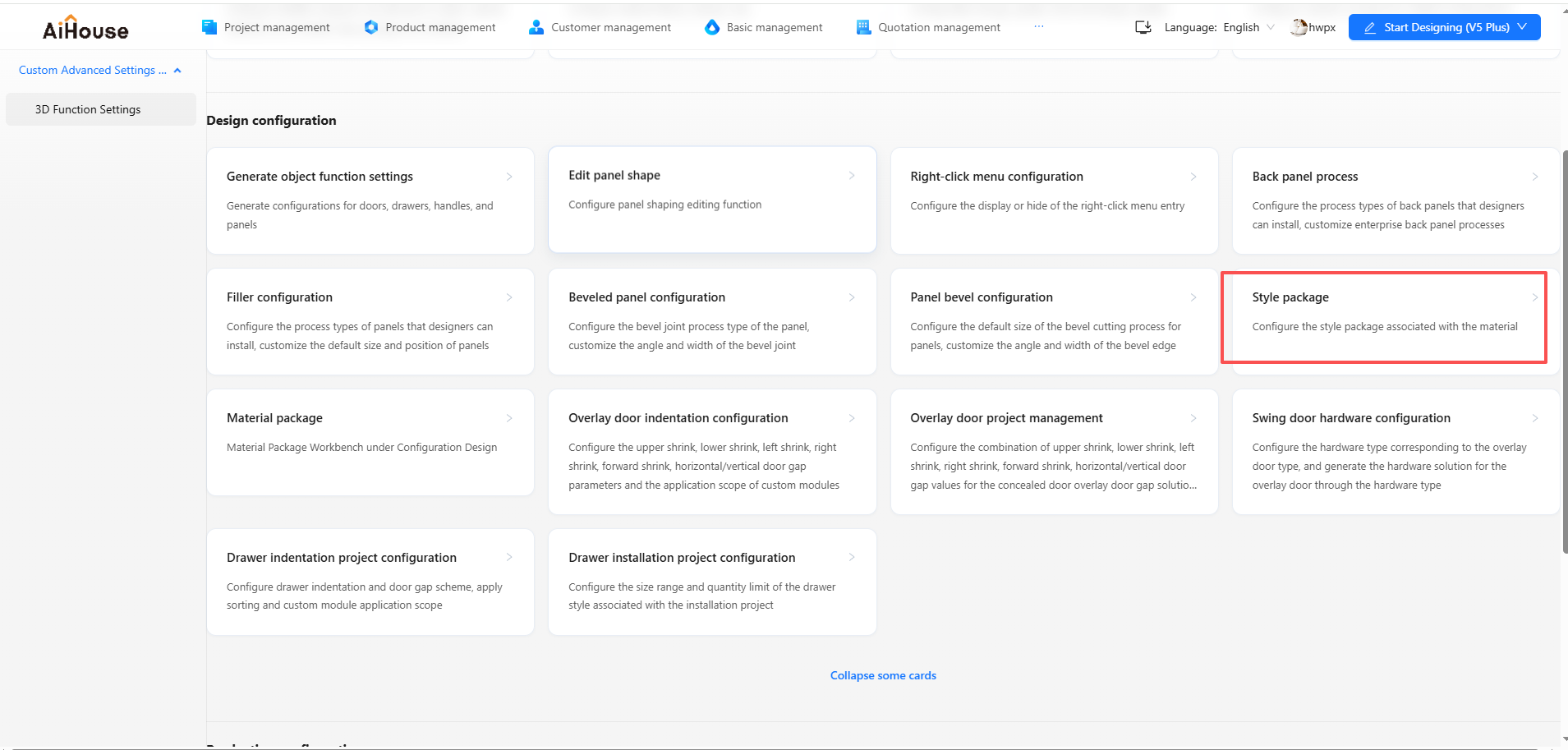
2. Style Package Configuration Entry in the Whole-House Backend
A new style package configuration entry is added to the whole-house backend management. Users can configure style packages even when the "Enable Style Package" switch is turned off.
II. Feature Overview (Workbench)
1. Basic Introduction
1.1 Core Capabilities
The Style Package feature provides search, grouping, batch association, copy, and other functions. In this release, style packages are available for three major categories:
- Functional components
- Door panels
- Cabinet panels
It currently supports only four major modules:
- Cabinets
- Wardrobes
- System cabinets
- Bathroom cabinets
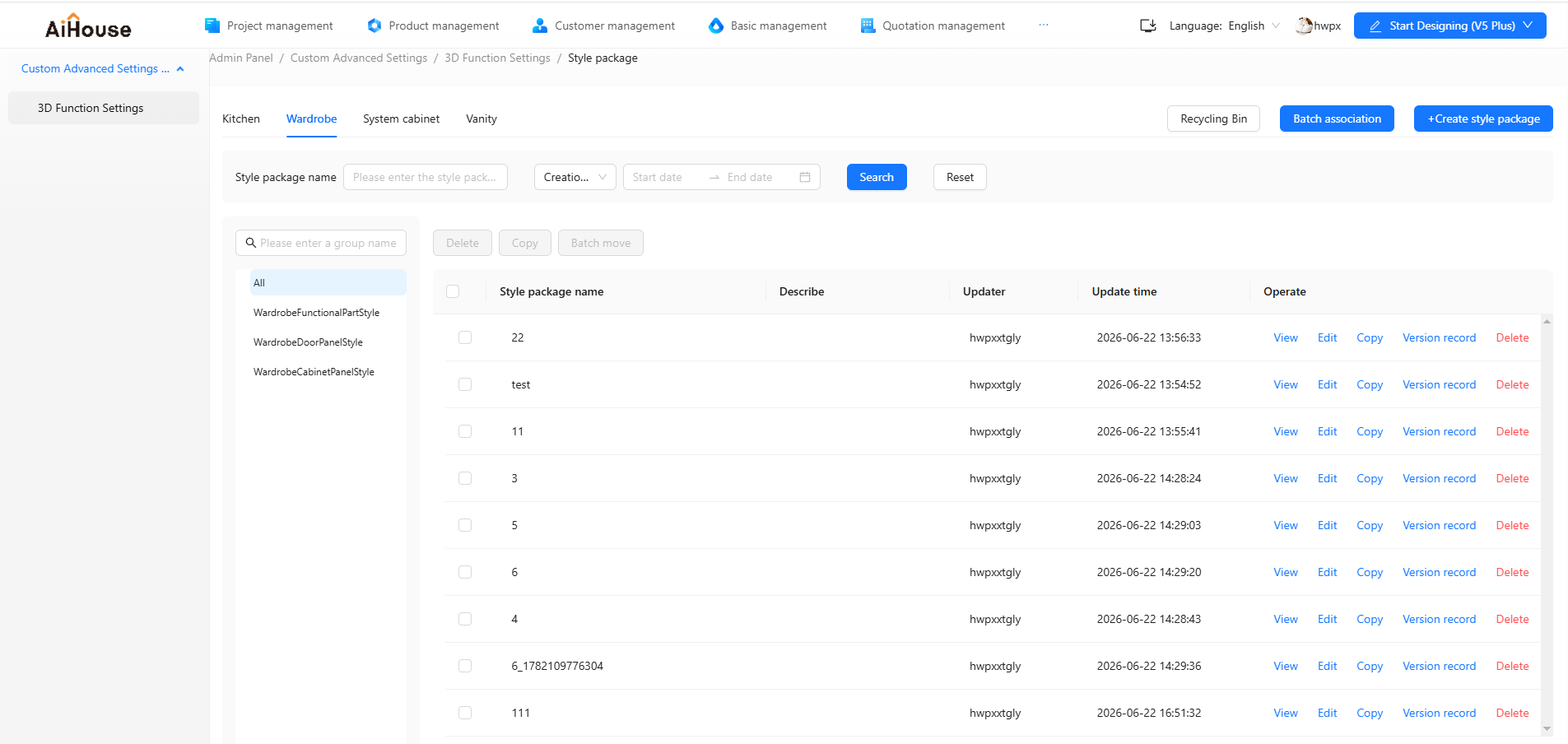
1.2 Create a New Style Package
- Click the New Style Package button in the upper-right corner to enter the creation page.
- Fill in the required items:
- Style package name
- Group
- Add assets
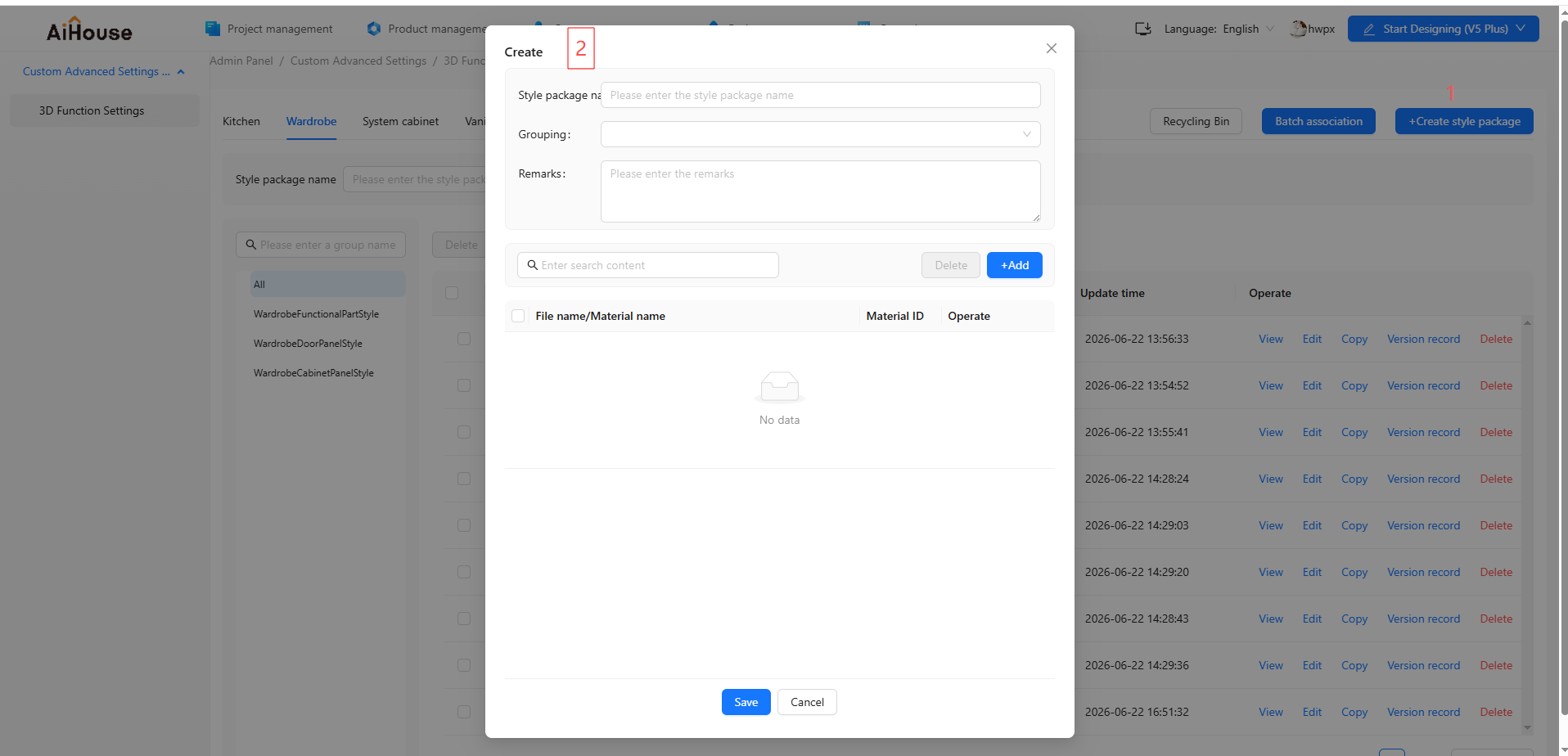
Different groups allow different selectable assets below. For example:
- Door panels can only read asset content from the door panel library
- Functional components can only read content from the functional component library
1.3 View / Edit a Style Package
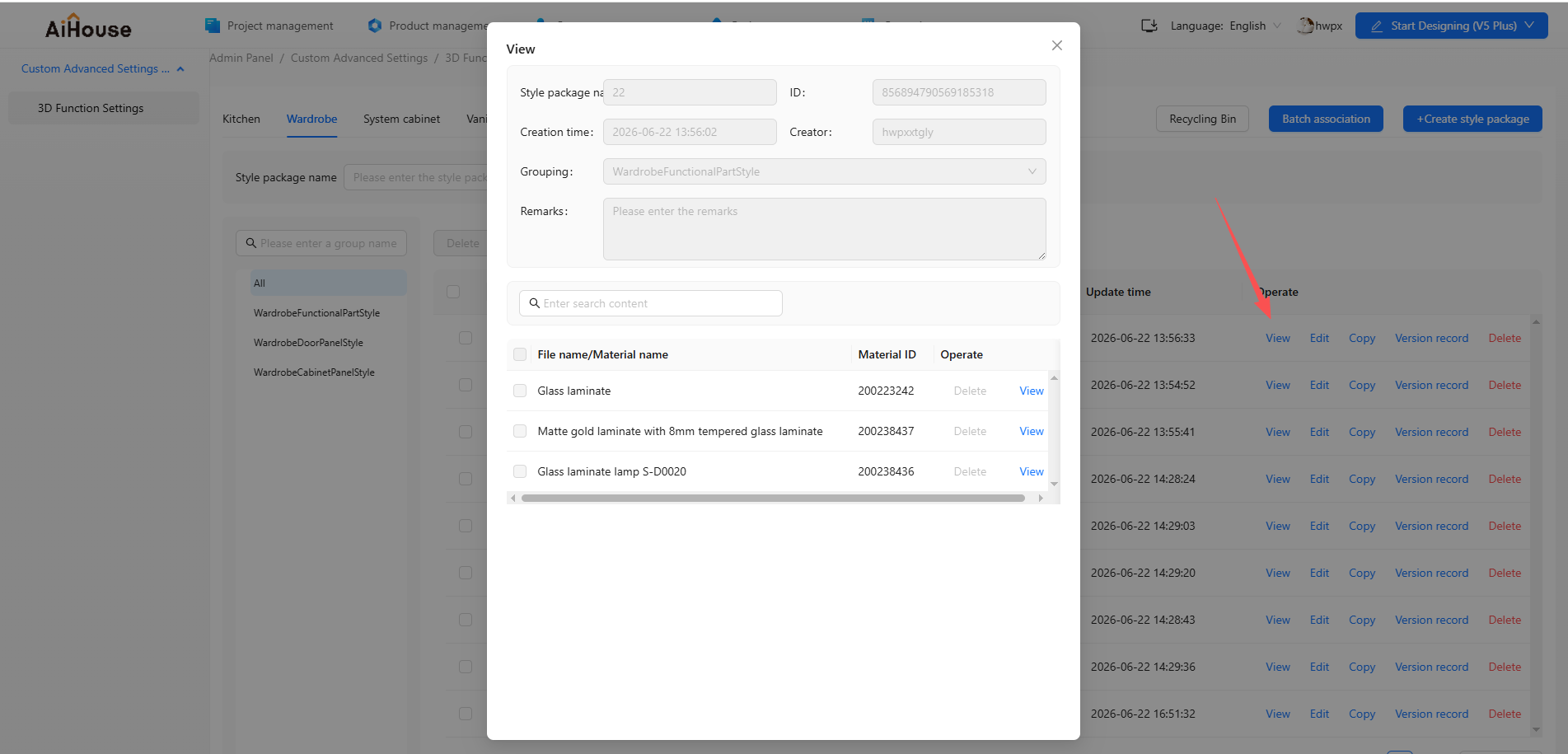
- Click View to enter view mode. No content can be edited in this state.
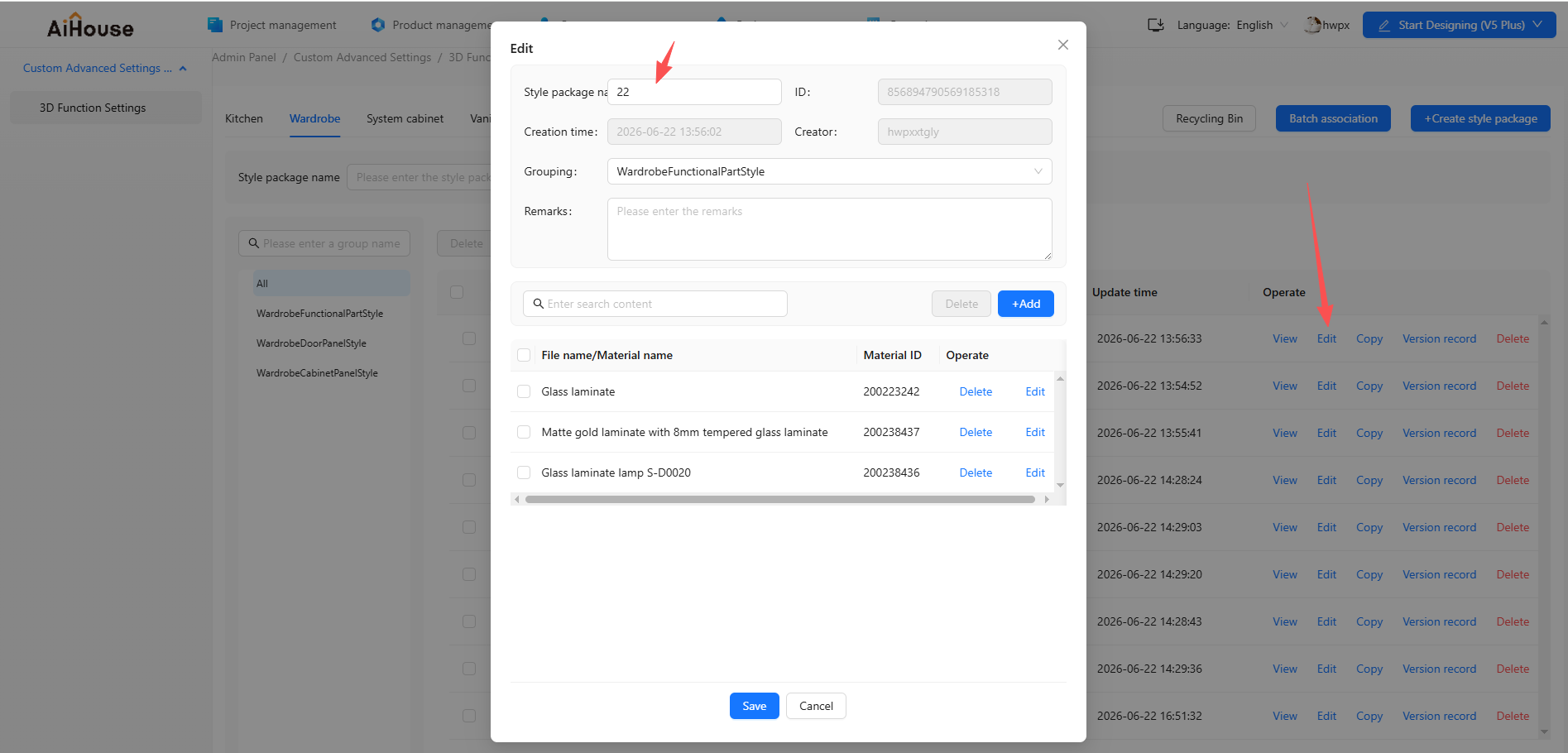
- Click Edit to enter edit mode. You can modify the corresponding top-level group and its subgroups, and you can modify, add, or delete assets.
1.4 Delete and Batch Delete
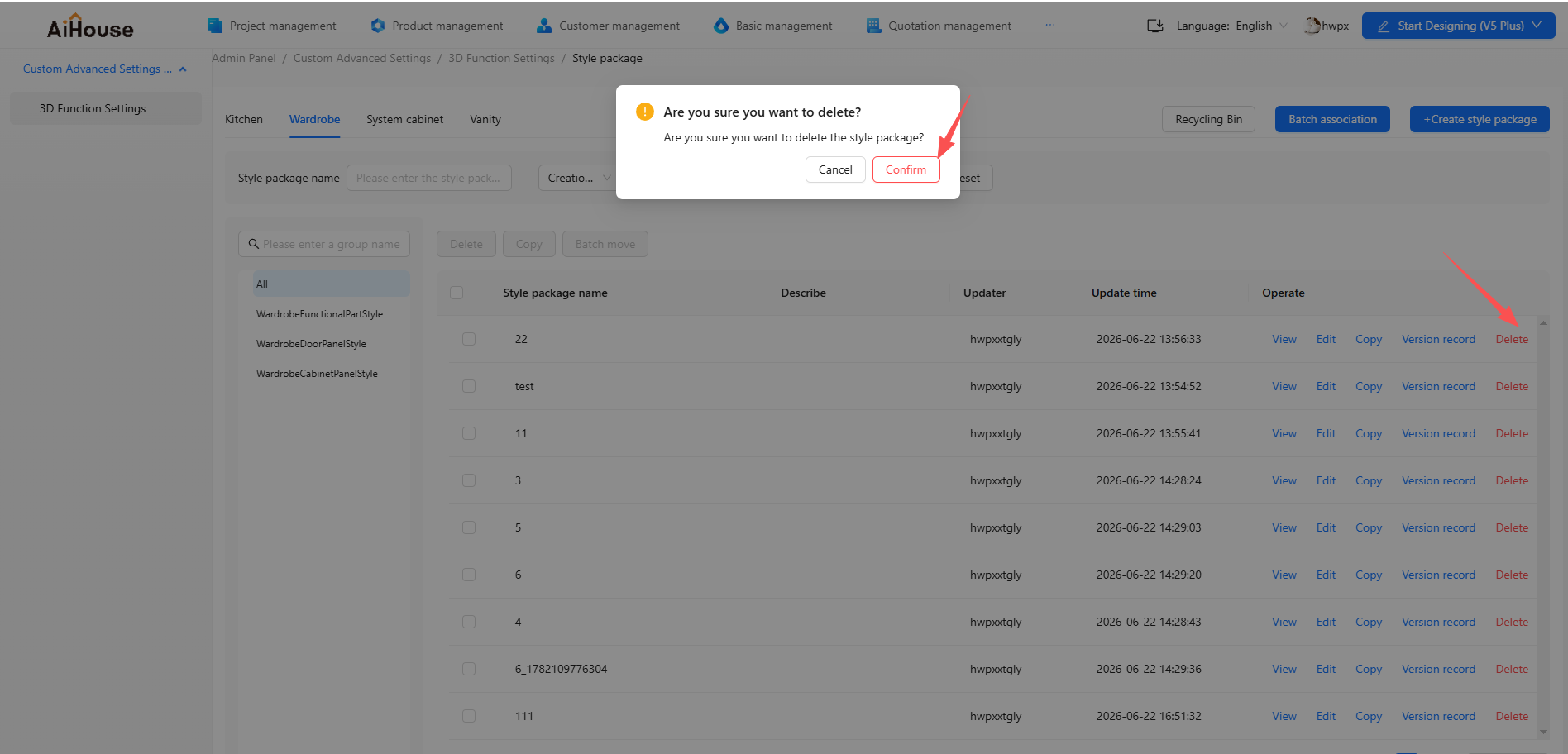
- Clicking Delete requires a secondary confirmation
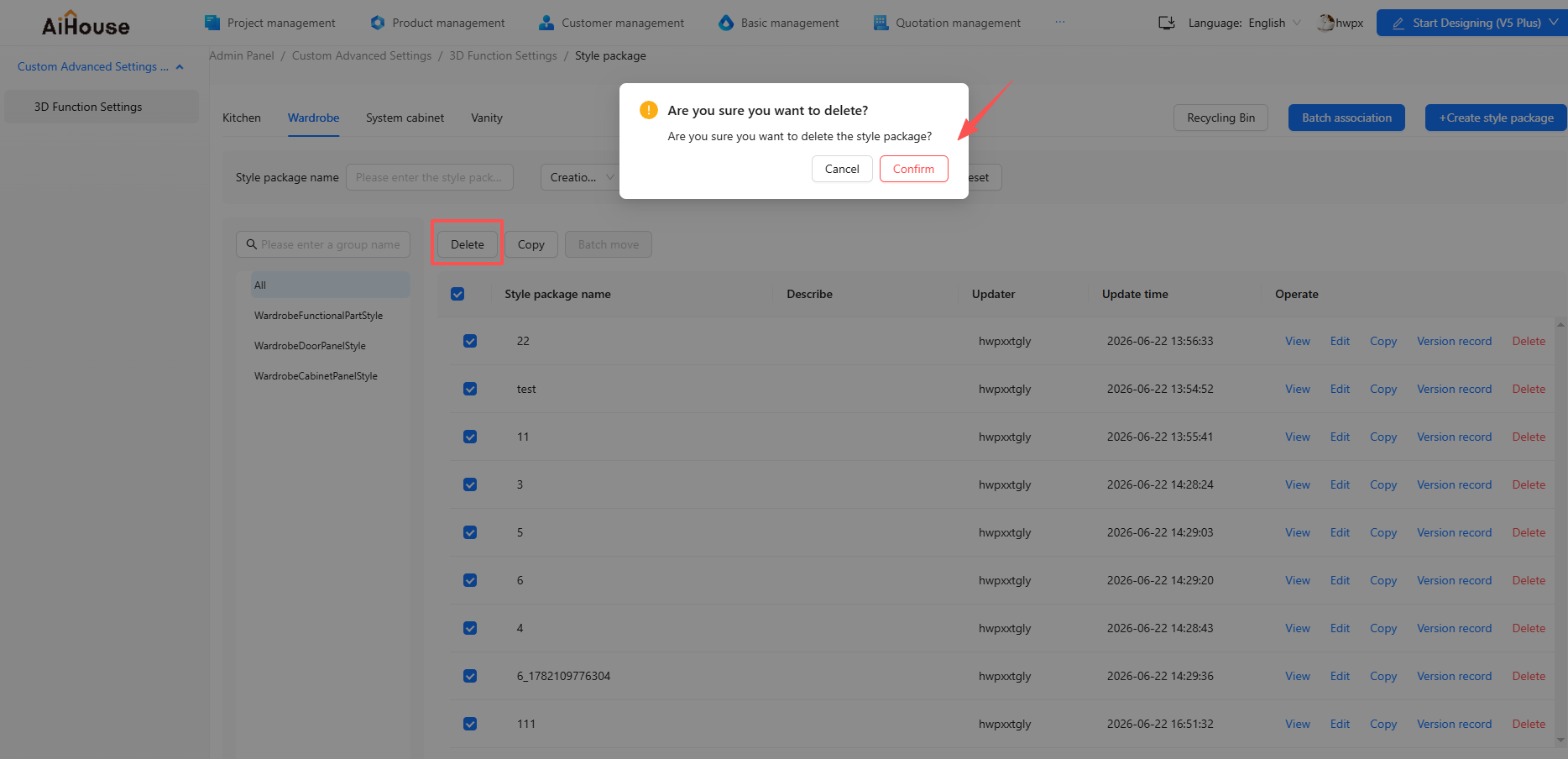
- A Batch Delete function is provided at the top of the menu
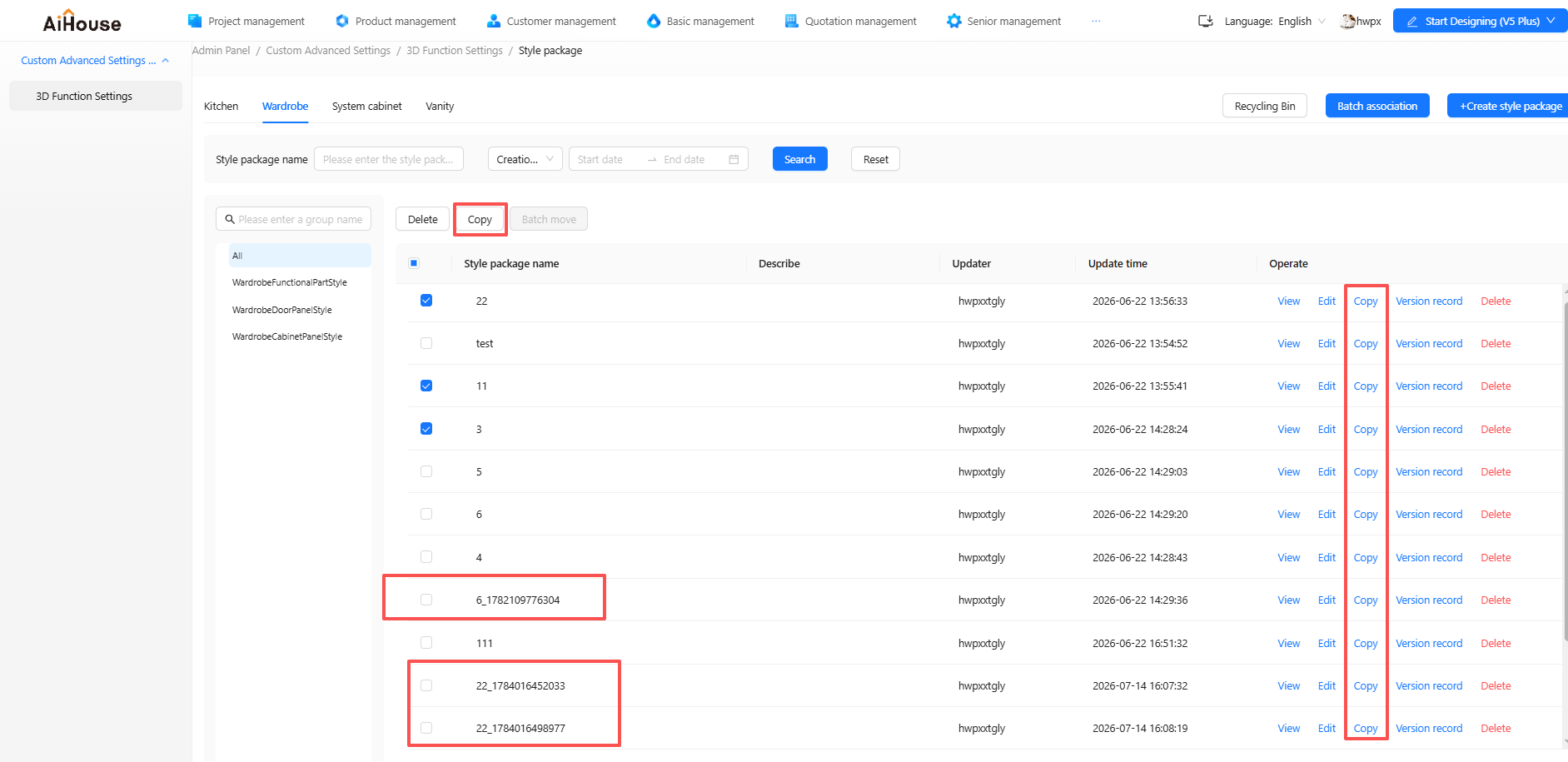
1.5 Copy and Batch Copy
Copy and batch copy are supported. After clicking, duplicated data is created, and the copied name includes a timestamp.
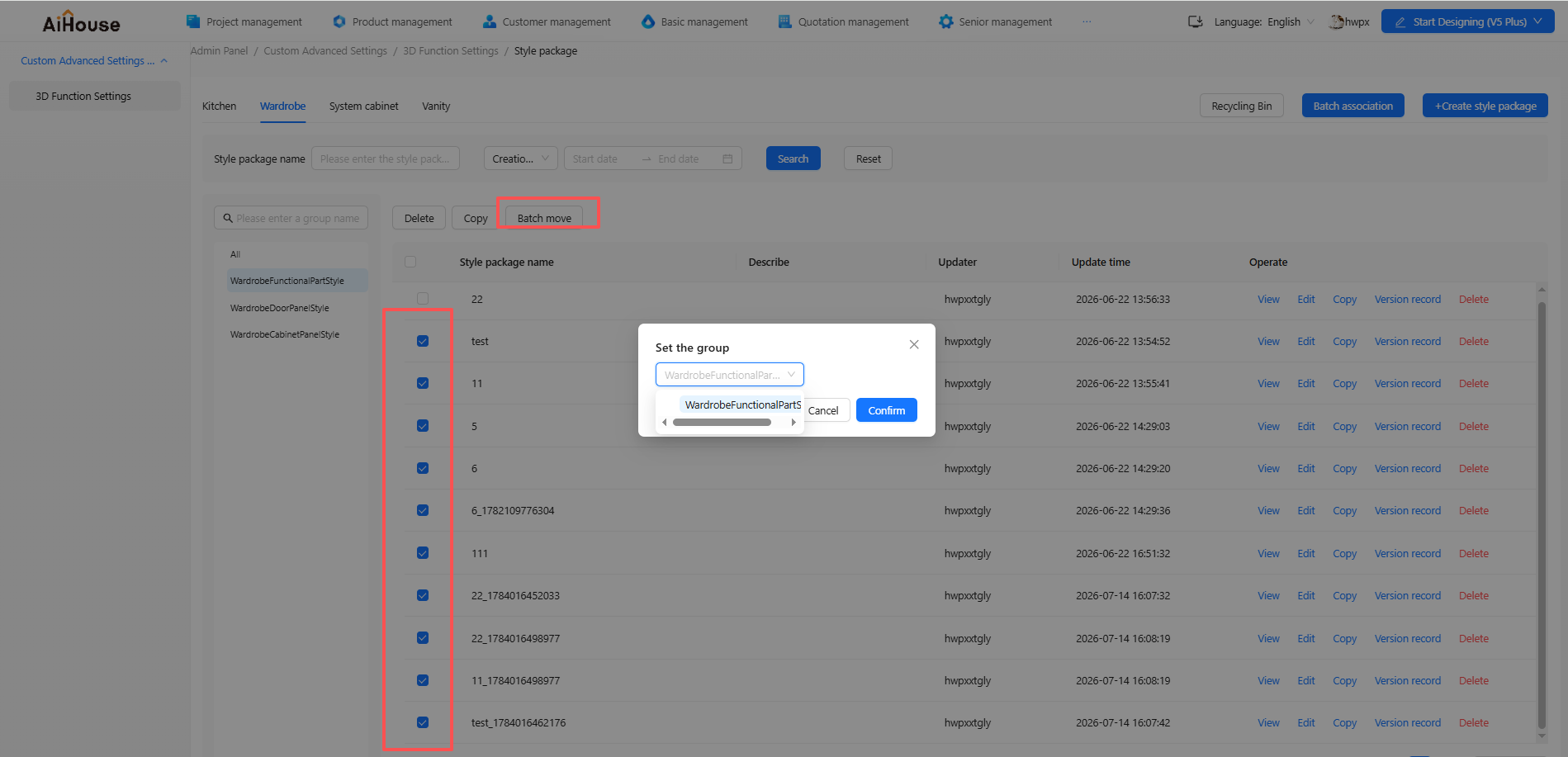
1.6 Batch Move
Batch move can only be performed under the same parent group.
2. Batch Association
2.1 Batch Association
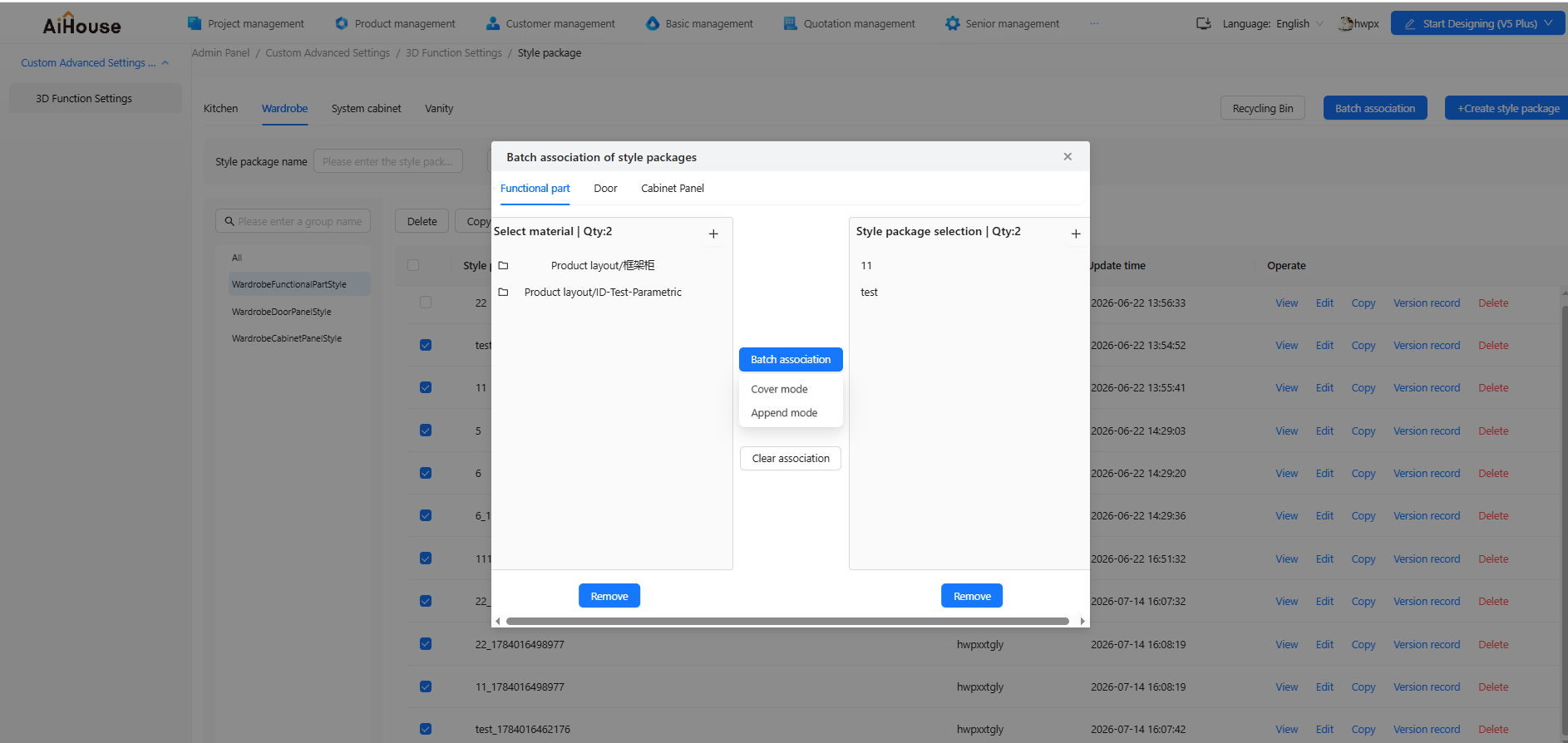
The entry point for batch association is shown in the original document. The association function is consistent with the existing classification logic and is divided into:
- Cabinet panels
- Door panels
- Functional components
Each module can only correspond to the style packages under that same module.
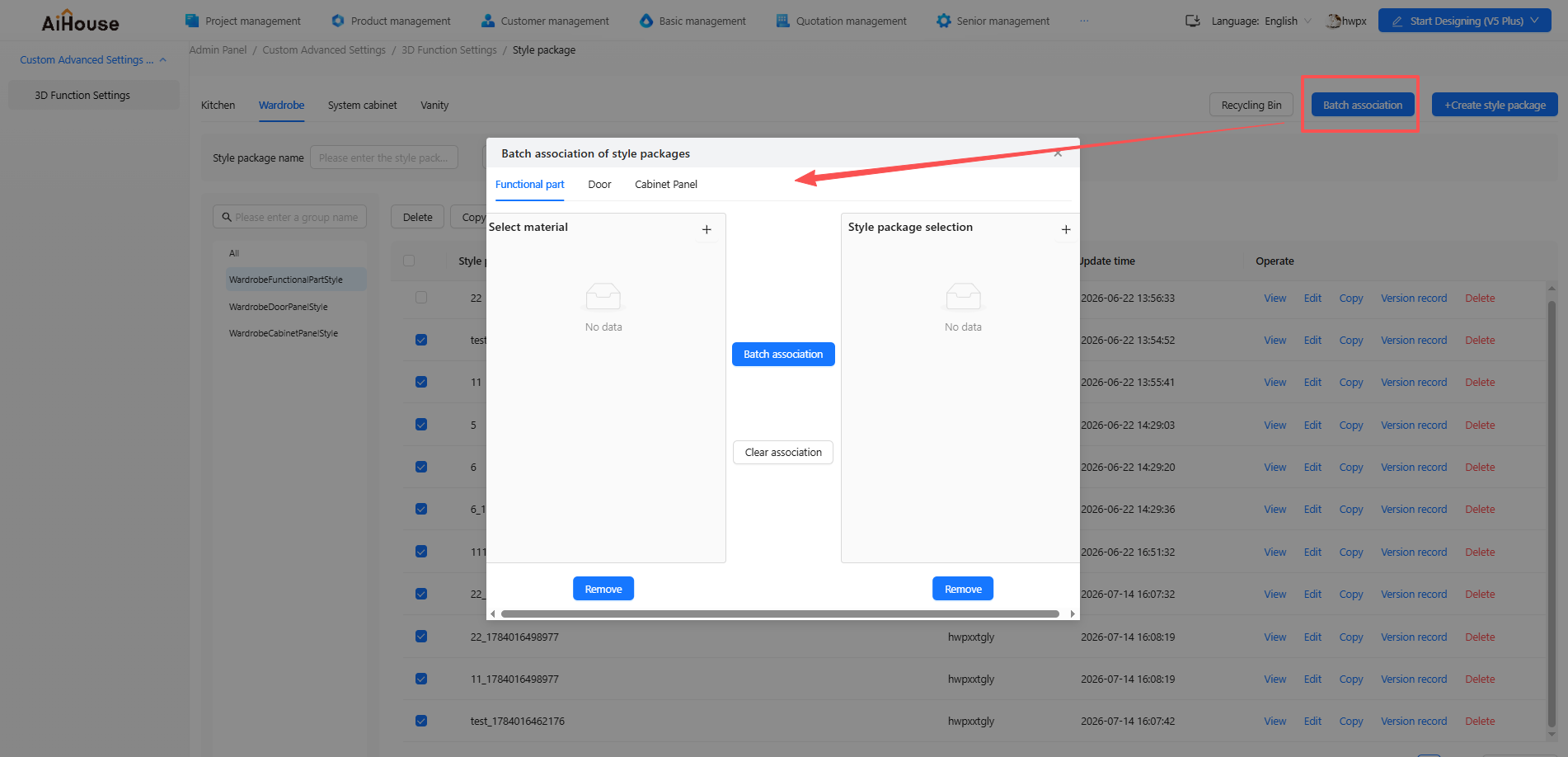
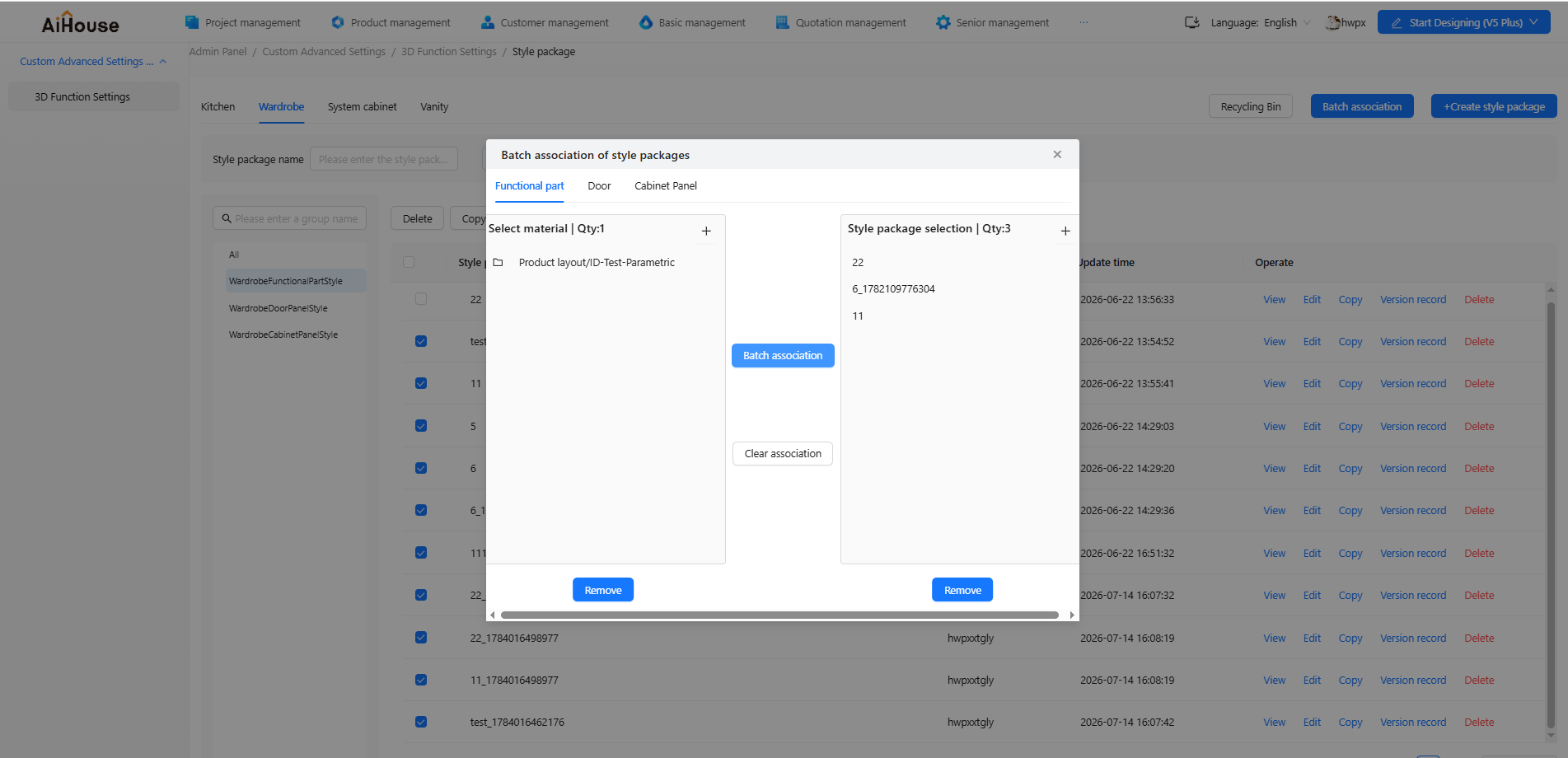
- Select the assets to be associated on the left
- Select the style package on the right
- Click Batch Associate to associate the selected assets with the selected style package
There are two modes:
- Overwrite Mode: In versions
20251111to20251210, this is the original behavior. The newly selected style package overwrites the style package content currently associated with the original asset. - Append Mode: Starting from version
20251229, append mode is added. The newly selected style package is appended to the original style package association directory of the asset, and duplicate items are removed.
2.2 History Records of Batch Association
After batch association is used, the corresponding asset will display a historical version labeled "Workbench Style Package Batch Association."
PS:
Style packages for functional components can only be associated with units.
Style packages for cabinet panels can only be associated with cabinet panels.
Style packages for door panels can be associated with units or drawers.
III. How to Add / Delete Groups (Workbench)
1.1 Configuration Entry
Go to:
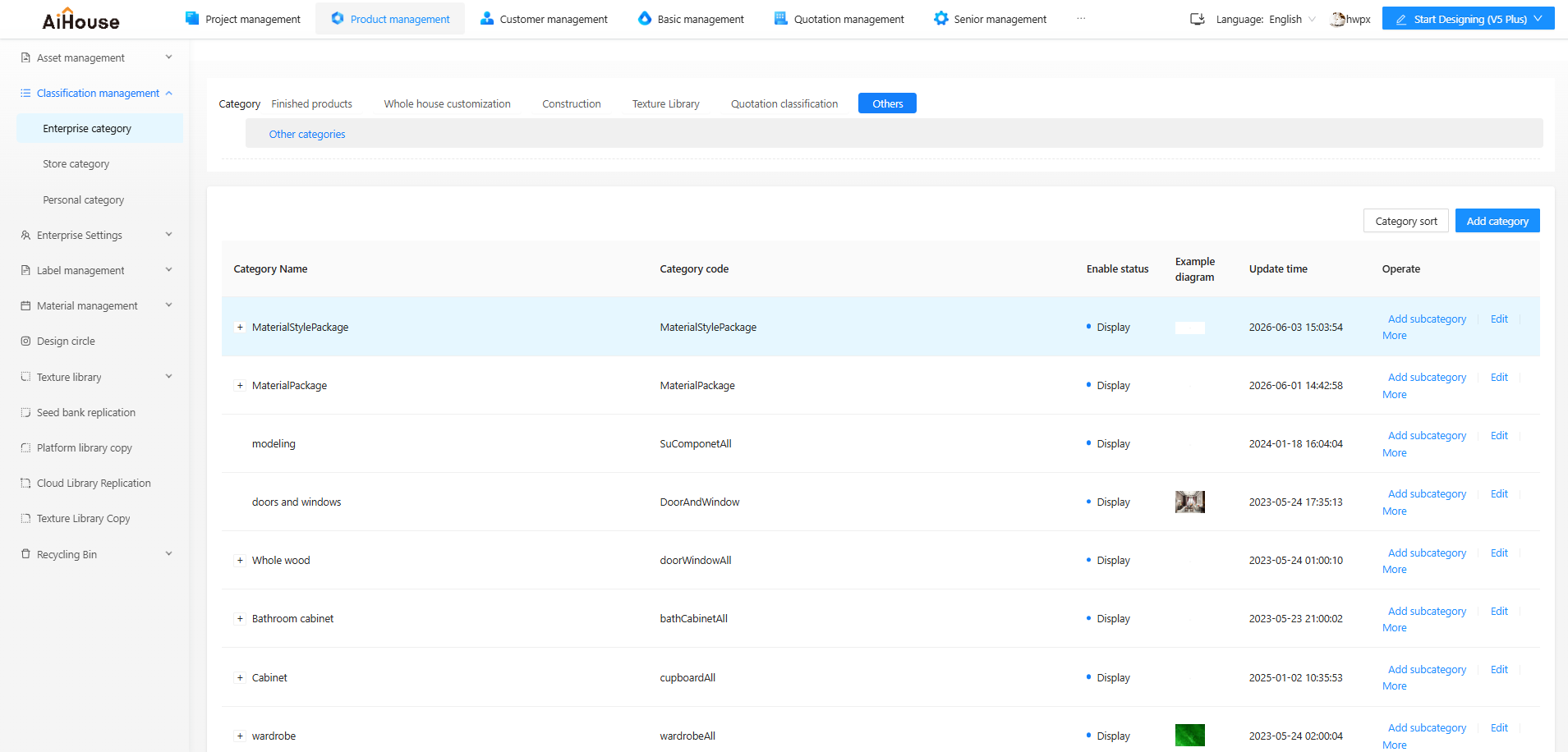
Product Management / Category Management / Enterprise Categories / Others / Other Categories
Find the Style Package category. Under the corresponding module, find the corresponding asset module:
- Cabinet panels
- Functional components
- Door panels
Then click Add Subcategory to create a new one. Currently, only 3 levels of categories are supported.
1.2 Effect
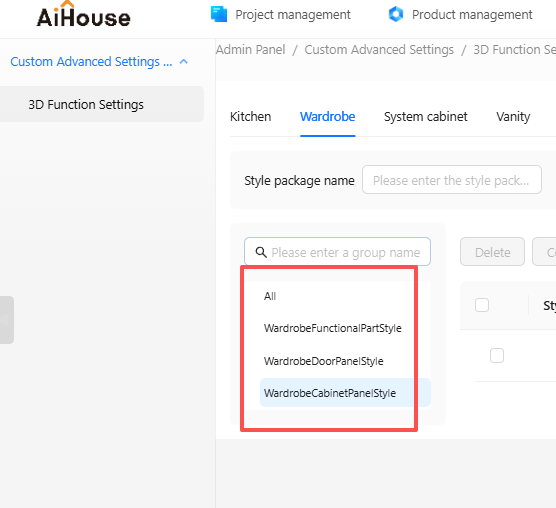
After a subcategory is added, the corresponding group will also appear in the left-side category area of the style package configuration page.
1.3 Delete a Group
Deleting a group will delete all style packages under it, but they can be recovered from the recycle bin. Therefore, this operation should be used with caution.
1.4 Category Code Details
Users need to add the related category codes in the backend. The hierarchy is as follows:
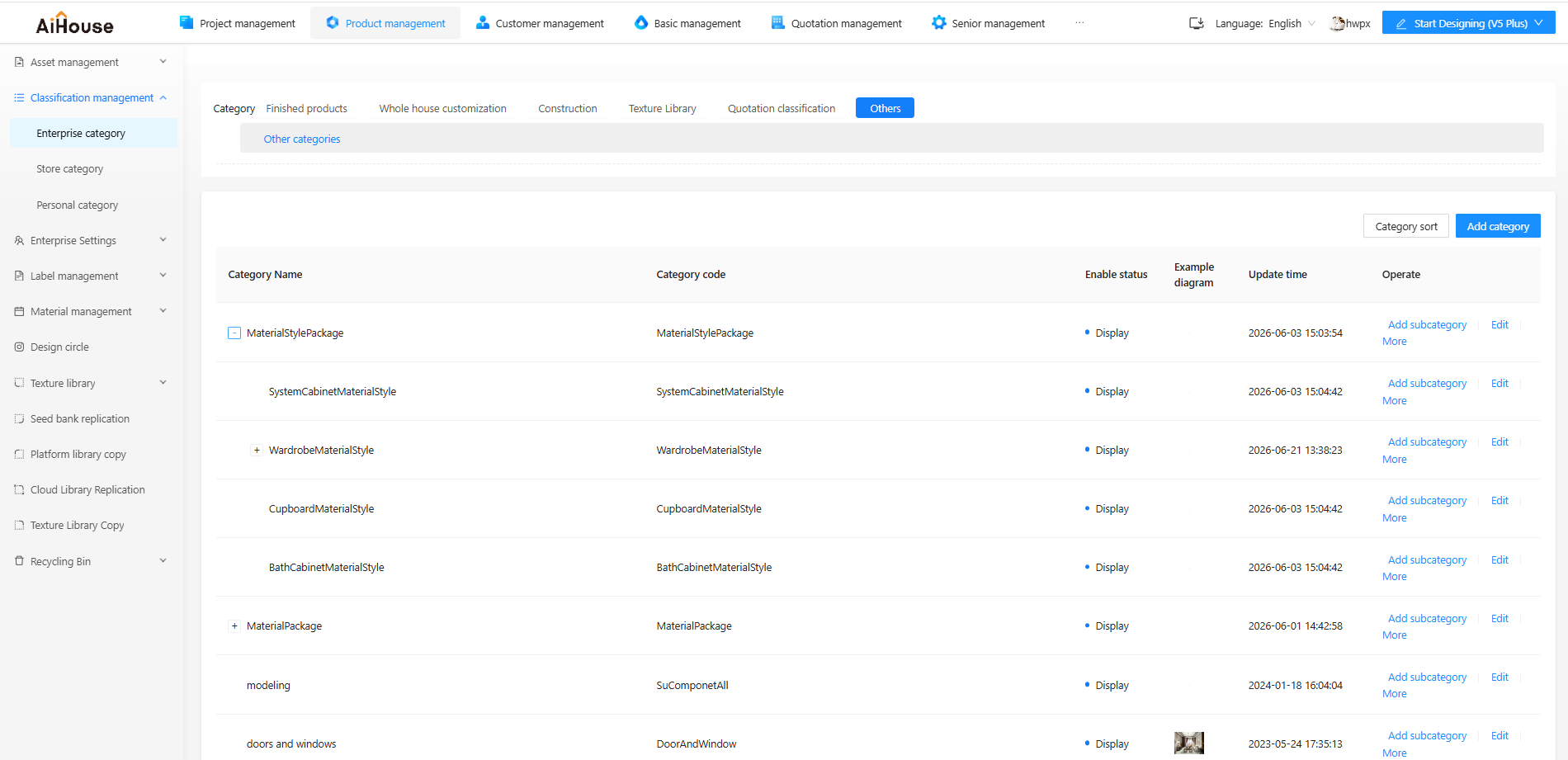
Style Package MaterialStylePackage
    Cabinet Style Package CupboardMaterialStyle
        Cabinet Panel CupboardCabinetPanelStyle
        Door Panel CupboardDoorPanelStyle
        Functional Component CupboardFunctionalPartStyle
    Wardrobe Style Package WardrobeMaterialStyle
        Functional Component WardrobeFunctionalPartStyle
        Door Panel WardrobeDoorPanelStyle
        Cabinet Panel WardrobeCabinetPanelStyle
    System Cabinet Style Package SystemCabinetMaterialStyle
        Cabinet Panel SystemCabinetPanelStyle
        Door Panel SystemCabinetDoorPanelStyle
        Functional Component SystemCabinetFunctionalPartStyle
    Bathroom Cabinet Style Package BathCabinetMaterialStyle
        Door Panel BathCabinetDoorPanelStyle
        Functional Component BathCabinetFunctionalPartStyle
        Cabinet Panel BathCabinetPanelStyle

Level 0: Style Package
Level 1: Cabinet Style Package, Wardrobe Style Package, System Cabinet Style Package, Bathroom Cabinet Style Package
Level 2: Corresponding Door Panel, Functional Component, Cabinet Panel
Level 3: User-defined directory
IV. Feature Overview (3D)
1. Door Panels
1.1 Association Entry
In the backend Unit or Functional Component - Drawer, a new style package entry is added for associated door panels.
Associated door panels and style packages are mutually exclusive: only one of the two can be selected.
1.2 Associate a Style Package
Select a style package and click Save to complete the asset association.
1.3 Frontend Effect
- Door panel - drawer front style package: When a style package is associated with the drawer front in the backend, the frontend displays a style package selection dialog when the drawer front style is being replaced.
- Door panel style package: When a style package is associated with a unit in the backend, the frontend displays a style package selection dialog when the door panel style is being replaced.
2. Functional Components
2.1 Association Entry
In the backend Unit, a new style package entry is added for associated functional components.
Associated assets and style packages are mutually exclusive: only one of the two can be selected.
2.2 Associate a Style Package
Select a style package and click Save to complete the asset association.
2.3 Frontend Effect
- When a style package is associated with a unit in the backend, the frontend displays a style package selection dialog when replacing panel components.
- When another functional component is dragged onto an asset that already has an associated style package, if that asset is not within the association scope of the style package, the system displays the message: "Not an associated functional component, placement failed!"
3. Cabinet Panels
3.1 Association Entry
In the backend Cabinet Panel, a new style package entry is added for associated cabinet panels.
Associated assets and style packages are mutually exclusive: only one of the two can be selected.
3.2 Associate a Style Package
Select a style package and click Save to complete the asset association.
3.3 Frontend Effect
When a style package is associated with a cabinet panel in the backend, the frontend displays a style package selection dialog when replacing panel components.